Module 1: Facebook Lead Forms to GHL
The native GoHighLevel Facebook integration — the 99% path. Push your Facebook lead-form leads straight into GHL.
What this covers
Create the workflow (if not already done)
Set up the Facebook integration
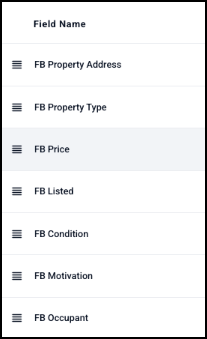
Custom fields
You need to create the following custom fields, in this order:
- PROPERTY ADDRESS
- PRICE
- LISTED
- PROPERTY TYPE
- CONDITION
- MOTIVATION
- OCCUPANT
Create a tag for Facebook leads
Mapping fields
There are two videos below. Video one does not incorporate the custom fields, but video two does — so watch both.
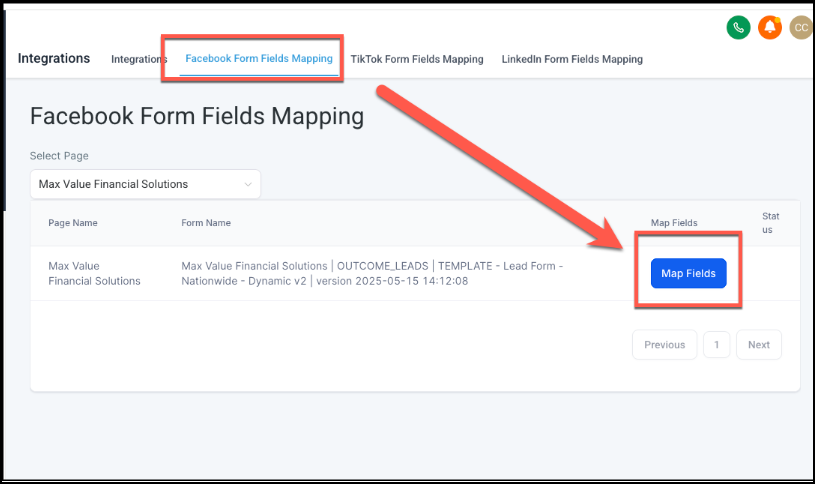
In the Integrations tab you'll now see a Facebook form fields mapping section. Go to that section, click Map Fields, and map at least:
- first name
- phone number
- address
Create a new workflow from scratch
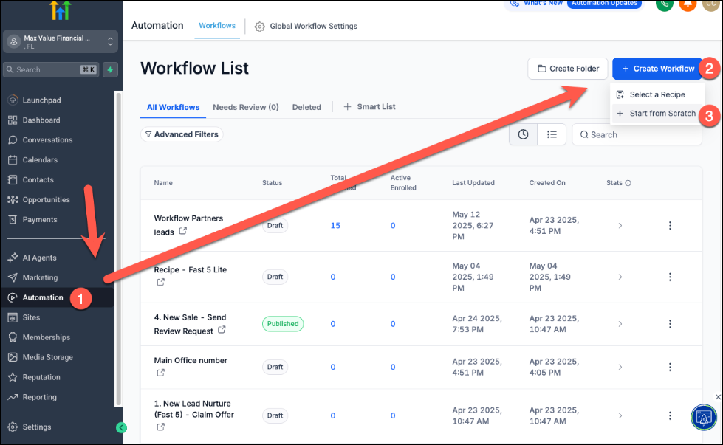
Under Automation, go to Workflows and create a new workflow.
Name the workflow
Name it something like Flipanywhere: FB Leads.
Always save your work
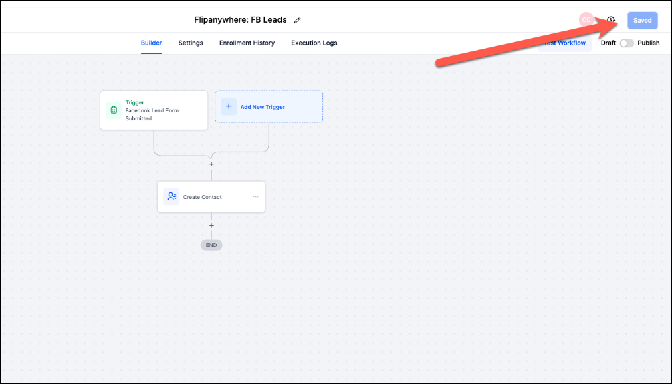
Create the trigger for the Facebook lead form
Create the contact record (standard fields)
Create the contact and populate all the fields. This is broken up into a few videos. Be sure to save your work in the lower right-hand corner.
Adding the property address 🏡 — on the previous step the property address field wasn't mapped, so this video handles it.
Add notes to the contact record ✏️
Create a note in the contact record and map out the following fields:
- NAME:
- PHONE:
- EMAIL:
- PROPERTY:
- PRICE:
- LISTED:
- PROPERTY TYPE:
- CONDITION:
- MOTIVATION:
- OCCUPANT:
Add the tag via the workflow
Add the contact to a pipeline / opportunity
Add the lead to an opportunity. The first video shows how; if you don't have a pipeline yet, create one using the stages below, then use the second video to add the lead to it.
If no pipeline exists, create one with these stages
- Inbox (New Leads)
- Contact Attempt 1
- Contact Attempt 2
- Contact Attempt 3
- Make Offer
- Pending (Under Contract)
- Sold (Waiting To Close)
- Follow Up (w/Due Date)
- Closed
- Dead
- Dead (Listed)
- Dead (Rural)
- Dead (Unworkable)
Send notifications
Test the automation and workflow
Run through this checklist:
- Send test leads
- Make sure data is in the contact records
- Make sure the lead is tagged as "facebook"
- Confirm it's in the right opportunity stage
- Confirm notes are attached to the opportunity
- Confirm the automation is published